






muse-cli.mp4
A command-line client for your personal muse.ai AI agent: chat from the terminal, automate it with scripts, and manage side chats, feed, goals, ideas, and sessions without opening a browser. It speaks the app's own gateway protocol directly: HTTPS auth, then an encrypted Noise-XX WebSocket to your personal VM.
- Chat from the shell: send a message and get the agent's reply back as JSON.
- Script it: every command prints JSON, so it pipes into
jq, cron jobs, and other AI agents. - Full coverage: named commands for the common tasks, plus a
rawescape hatch for all 258 gateway methods. - Agent-ready: ships an agent skill so coding agents can drive your muse.ai agent for you.
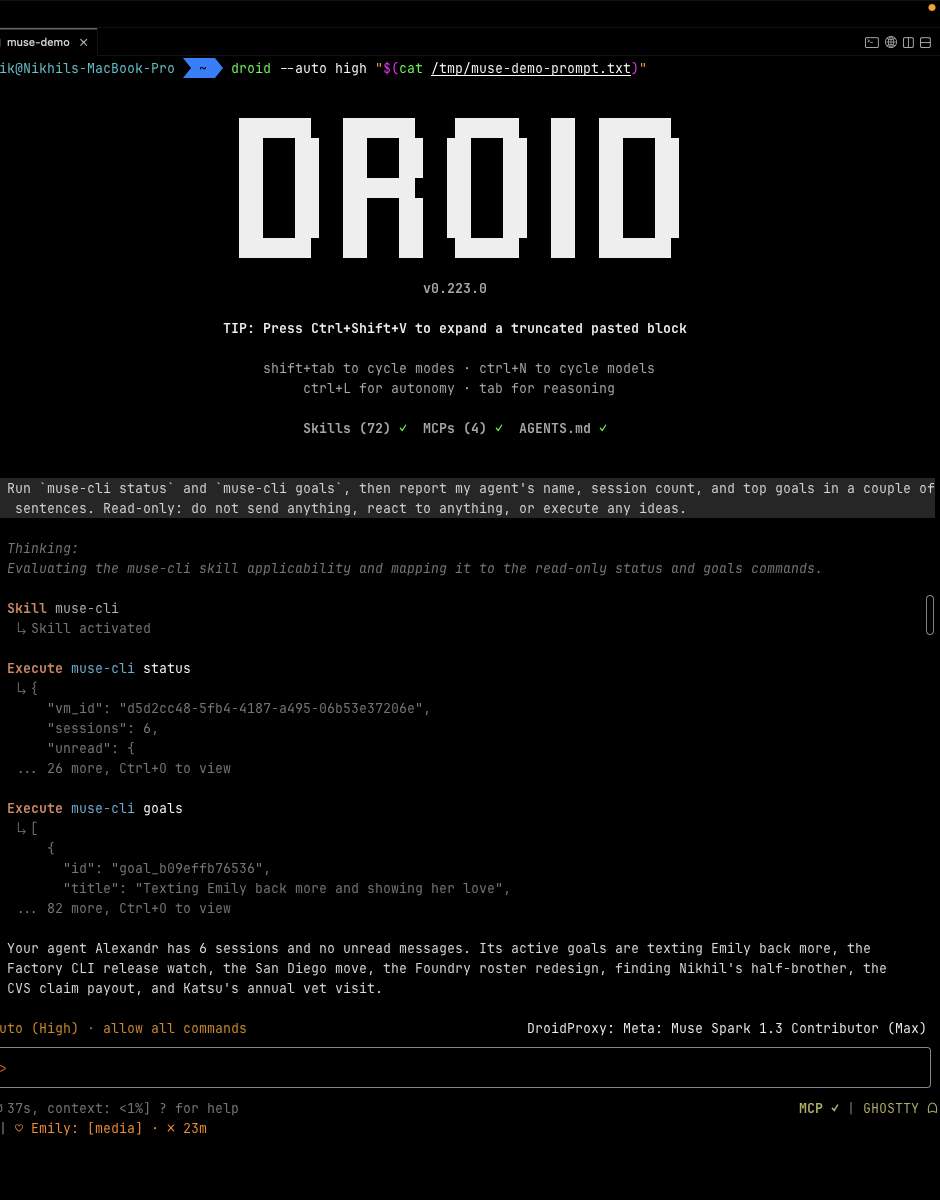
Prompt a coding agent, it activates the muse-cli skill and runs read-only
commands for you. Live session below: a Droid worker runs muse-cli status
and muse-cli goals, then reports back.
uv tool install muse-cli # or: pipx install muse-cli / pip install muse-cliThe command is muse-cli. The name muse belongs to Muse Code on many machines.
Want the agent skill too? The installer sets up the CLI and copies the skill
to ~/.agents/skills/muse-cli:
curl -fsSL https://raw.githubusercontent.com/nikships/muse-cli/main/install.sh | bashUpgrade with muse-cli update. It also refreshes the agent skill if you installed one (the skill ships inside the package, so it always matches the CLI). muse-cli update --skill refreshes or installs just the skill, with no package upgrade, which is handy after pip or pipx installs. In a terminal it also checks PyPI once a day and, when a newer release exists, prints that command on stderr. It does not upgrade itself. Set MUSE_NO_UPDATE_CHECK=1 to silence the notice. The check stays quiet when output is piped or CI is set. Remove with uv tool uninstall muse-cli.
Logging in is a separate one-time step. On a Mac it is one command, run after you have logged in at https://muse.ai/ in your browser. Follow Log in once before running any other command.
muse-cli borrows the login you already have in your browser, saves those
cookies to ~/.config/muse-cli/cookies.txt (mode 600, only your user can
read it), and after that talks to muse.ai directly. Access tokens are fetched
fresh on every command. When a command later says the cookies expired, repeat
this section.
- Log in at https://muse.ai/ in your browser.
- Run:
muse-cli auth export
muse-cli status
macOS asks once whether security may use the browser's Safe Storage key
(that key decrypts the browser's cookie file). Click Allow, or Always
Allow to skip the prompt next time. No Node.js and no debugging port are
needed, and the browser can be closed.
Success looks like this (the count varies):
saved 9 muse.ai cookies to /Users/you/.config/muse-cli/cookies.txt (from chrome (Default))
It reads every profile of every supported browser and uses the one that is
logged in to muse.ai. Pick one with --browser chrome|brave|arc|edge|chromium.
Unreadable profiles are skipped if another profile has a usable login.
Only cookies valid for muse.ai are exported, not subdomain-only cookies.
Expired cookies are ignored, and an empty or expired hatch_sess never
replaces your saved login. If the cookie database keeps changing during the
read, close the browser and retry.
If nothing is logged in, the command says so and leaves the cookies file on
disk as it was. muse-cli status then prints JSON with your VM id, how many
chats you have, the unread count, and your identity. That means install and
login both worked.
Direct reading is macOS-only and covers Chromium browsers, not Safari.
Elsewhere (or with muse-cli auth export --browser agent-browser) the login
is read from a running Google Chrome through agent-browser.
Do the steps in order. Each one checks itself before you continue.
That package comes from npm, so you need Node.js first.
node --version    # if this fails, install Node.js LTS from https://nodejs.org
                  # and open a new terminal
npm i -g agent-browser
agent-browser --version
npm i -g needs permission to write to npm's global bin directory. If it
errors with EACCES, pick one and use it from then on: configure an
npm prefix you own,
or run the install with the same rights you use for other global npm tools.
Then check command -v agent-browser prints a path.
Open Google Chrome, the same profile you use for muse.ai. Paste this in the address bar:
chrome://inspect/#remote-debugging
Turn on remote debugging. The checkbox reads Allow remote debugging for this browser instance. Leave Chrome open.
Turn this on while Chrome is already open and muse.ai is loaded. The export can see that window only after the switch is on. The page is in Chrome 144 and newer.
Stay in this window. Starting a second Chrome with
--remote-debugging-port opens a different profile, and that profile does
not have your muse.ai login.
In that same Chrome window, open https://muse.ai/ and log in. Leave the tab open. The exporter reads whichever tab is active, so the muse.ai tab has to be the one in front when you run the next command.
muse-cli auth export --browser agent-browserChrome may ask to allow the debugging connection. Click Allow. If the
command already failed, run it again after you click Allow. Then run
muse-cli status to check the connection.
The command prints the fix on the failure itself. These are the ones it recognizes:
| What it says | What to do |
|---|---|
| No running Chrome / remote debugging | The switch in step 2 is off. Turn it on in the Chrome you already have open, then run the command again. |
| No muse.ai tab | Step 3. Open https://muse.ai/ in that same window and leave the tab open. |
No hatch_sess |
The tab is open and you are logged out. Log in, then export again. The cookies file already on disk is left as it was. |
agent-browser is not installed |
Step 1. node --version, then npm i -g agent-browser, then a new terminal. |
| Daemon already running | A previous attempt is stuck. agent-browser close, then muse-cli auth export --browser agent-browser. |
Use this when you don't have Node, or you don't want remote debugging on.
- In Chrome, open https://muse.ai/ and log in.
- Open DevTools (F12, or Ctrl+Shift+I) → Application → Cookies →
https://muse.ai. - Copy the cookies onto one line.
hatch_sesshas to be there. Separate cookies with;(semicolon, space). A Netscape cookie jar (what curl writes) and a JSON object such as{"hatch_sess": "..."}also work.
mkdir -p ~/.config/muse-cli
printf '%s\n' 'hatch_sess=the-value-from-devtools; other_cookie=other_value' > ~/.config/muse-cli/cookies.txt
chmod 600 ~/.config/muse-cli/cookies.txt
muse-cli statusmuse-cli # interactive chat (same as `muse-cli chat`)
muse-cli auth export --browser auto # import the browser login (macOS: direct read)
muse-cli threads # main chat + side chats
muse-cli history --limit 5 # recent messages
muse-cli history --thread <session-id> --limit 5 # one side chat
muse-cli send "summarize my unread" --wait 120 # send + wait for the reply
muse-cli watch --timeout 60 # tail live agent events
muse-cli files --limit 20 # images/videos in recent messages
muse-cli download <seq|message-id|sandbox://...> -o ./out # save agent-made files
muse-cli history --limit 3 --download ./out # save files from these messages
muse-cli send "make a cat video" --wait 300 --download ./out # waits for the chat to go quiet (15 s), at most --wait
muse-cli watch --thread <session-id> # tail one side chat
muse-cli unread # unread counts
muse-cli feed --limit 5
muse-cli feed-status # also: feed-prompt
muse-cli feed-react <unit-id> love # or like, dislike
muse-cli goals # one goal: muse-cli goal <id>
muse-cli ideas # one idea: muse-cli idea <id>
muse-cli idea-exec <idea-id> # agent acts on the idea
muse-cli session-start --title "trip planning" # new side chat
muse-cli session-rename <id> "new title"
muse-cli session-archive <id> # also: pin, unpin, unarchive, delete
muse-cli seen <thread-id>
muse-cli wake
muse-cli raw <method> --body '{}' # escape hatch: any of 258 gateway methodsThe interactive chat prints plain text, one message per line, so it works well
with screen readers. It resumes the conversation you used last; type /help
inside it for /chats, /open N, /main, /new, /history, and /login.
Any command above can also be run with a leading slash (/status, /goals,
/files, etc.) with <TAB> auto-completion.
Every other command prints JSON. Your VM is auto-discovered from your session, and a random device id is generated on first run.
Pipe it into other tools:
muse-cli send "what's on my calendar today?" | jq -r .reply.text
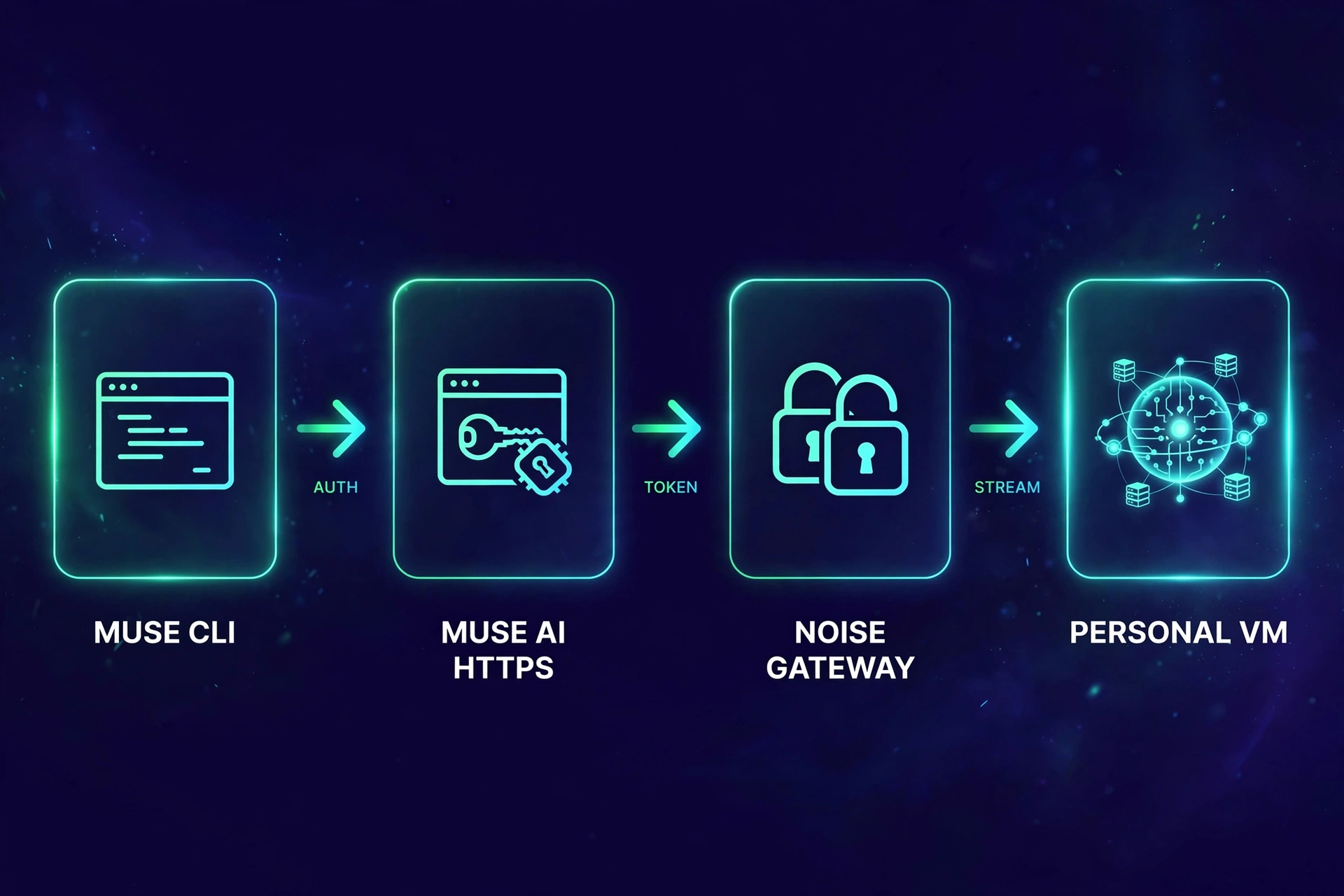
See docs/PROTOCOL.md for the full protocol notes, including the method table and the server quirks found during reverse engineering.
| Resource | Description |
|---|---|
| skills/muse-cli/SKILL.md | Agent skill: install check, auth setup, command reference |
| docs/PROTOCOL.md | Gateway protocol reference: auth chain, Noise transport, framing, method quirks |
| routes.json | All 258 gateway methods with paths and services |
muse-cli raw --help |
Escape hatch for calling any gateway method directly |
git clone https://github.com/nikships/muse-cli.git
cd muse-cli
uv run muse-cli --help
uv run python -m unittest discover -s tests   # unit tests (no network)
muse-cli/
assets/ README artwork (generated with Muse Image)
docs/PROTOCOL.md protocol reference for re-derivation
scripts/ release version bump (used by CI)
site/ landing page (Firebase Hosting)
skills/muse-cli/ agent skill
src/muse_cli/
cli.py argument parsing and all commands
chat.py interactive chat (the default command)
browsers.py reads the muse.ai login from Chromium browsers on macOS
gateway.py gateway client (auth, Noise transport, subscriptions)
update.py daily update notice and `muse-cli update`
skill.py installs and refreshes the bundled agent skill
routes.json 258 gateway methods extracted from the web client
desc0.bin protobuf descriptors for the wire framing
desc1.bin
tests/ unit tests (no network)
install.sh CLI + skill installer
pyproject.toml
See AGENTS.md for
release flow and contributor notes. Merging to main publishes a release.
- Login is the Log in once section above. Cookies live at
~/.config/muse-cli/cookies.txt(mode 600). Access and gateway tokens are fetched fresh on every run. - On macOS,
auth exportdecrypts the muse.ai cookies from the browser's own cookie file, using the browser's Safe Storage key from your login keychain. Elsewhere it reads Google Chrome through agent-browser, which needs Chrome open with remote debugging on (chrome://inspect/#remote-debugging) and a logged-in muse.ai tab in front. - Respect muse.ai's terms and rate limits. Internal APIs are unversioned and can change; if calls fail, re-derive from a fresh app bundle.
Issues and PRs welcome. If the protocol drifts, the most useful contribution is a note of which method broke and the new server error text.
MIT. See LICENSE.