
VLC Player for React Native, rebuilt on the New Architecture (Fabric native component + TurboModule via codegen).
Uses MobileVLCKit 3.7.3 (iOS) / TVVLCKit 3.7.3 (Apple TV) and libvlc-all 3.7.5 (Android + Android TV).
Breaking change in 2.0.0: This package is New Architecture only. It no longer ships legacy bridge code. Expo is supported via the bare / prebuild workflow (a development build), but being a native module it cannot run in Expo Go. Upgrading from 1.x? See the Migration Guide.
- React Native >= 0.82 (since RN 0.82 the New Architecture is the only
option,
newArchEnabled=falseandRCT_NEW_ARCH_ENABLED=0are ignored). - Android minSdk 24+ (phones, tablets and Android TV), iOS deployment target 15.1+.
- Apple TV (tvOS 15.1+) requires the
react-native-tvos
fork of
react-native. See TV support below.
| Platform | Backend | Notes |
|---|---|---|
| iOS | MobileVLCKit 3.7.3 | iPhone / iPad |
| tvOS (Apple TV) | TVVLCKit 3.7.3 | Same API surface as iOS, selected automatically by the podspec |
| Android | libvlc-all 3.7.5 | Phones / tablets |
| Android TV | libvlc-all 3.7.5 | Same code path, requires a TV-ready manifest (see below) |
npm install @lunarr/vlc-player
# or
pnpm add @lunarr/vlc-playerAfter installing, reinstall pods so the Fabric codegen bindings are linked:
cd ios && pod install --repo-updateSet Enable Bitcode to NO
Build Settings ---> search Bitcode
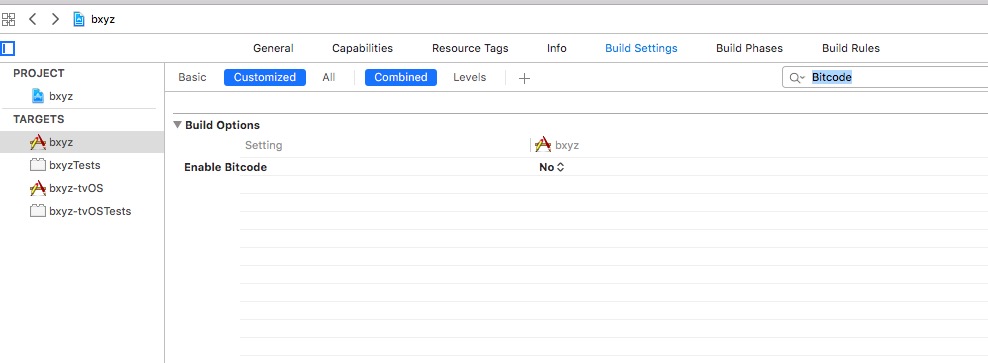
No extra Maven repository is required, libvlc-all resolves from Maven
Central. Run ./gradlew clean after upgrading.
import { useRef } from "react";
import Video, { type VLCPlayerRef } from "@lunarr/vlc-player";

export default function Player() {
  const ref = useRef<VLCPlayerRef>(null);

  return (
    <Video
      ref={ref}
      source={{ uri: "https://example.com/video.mkv" }}
      style={{ flex: 1 }}
      autoplay
      onProgress={({ currentTime, duration }) => {
        console.log(currentTime, duration);
      }}
      onEnd={() => {
        console.log("ended");
      }}
      onError={(e) => console.warn(e)}
    />
  );
}| Method | Description |
|---|---|
play() |
Start / resume playback (from the current position). |
pause() |
Pause playback. |
seek(timeSeconds) |
Seek to a position, in seconds (fractional values accepted, e.g. seek(123.5)). |
snapshot(path) |
Save a snapshot as PNG to path. |
getMetadata() |
Emit onMetadata with the current media metadata. |
changeVideoAspectRatio(ratio) |
Override the video aspect ratio (e.g. "16:9"). |
getTracks() |
Emit onTracks with the current audio / subtitle tracks. |
selectAudioTrack(index) |
Select an audio track by id from onTracks (-1 disables). |
selectSubtitleTrack(index) |
Select a subtitle track by id from onTracks (-1 disables). |
setSubtitleFile(path) |
Load an external subtitle file (.srt, .vtt, ...). |
setAudioDelay(micros) |
Set audio delay in microseconds. |
setSubtitleDelay(micros) |
Set subtitle delay in microseconds. |
setEqualizerEnabled(enabled) |
Turn the equalizer on / off. |
setEqualizerPreset(index) |
Select a built-in equalizer preset. |
setEqualizerPreamp(value) |
Set pre-amp gain (-20..20 dB). |
setEqualizerBandGains(gains) |
Set per-band gains, comma-separated (-20..20 dB). |
release() |
Release the player / media resources (the player is no longer usable). |
These map to codegen dispatchCommand calls (Fabric commands). There is no
setNativeProps anymore.
source, autoplay, paused, muted, repeat, rate, resizeMode,
volume, autoAspectRatio, videoAspectRatio, progressUpdateInterval,
continueAudioInBackground, showNowPlaying, nowPlayingMetadata, plus the event callbacks: onLoad, onLoadStart,
onProgress, onSeek, onPlaying, onPaused, onEnd, onError, onBuffer, onMetadata, onStopped,
onSnapshot, onTracks.
All state events (onLoad, onPlaying, onPaused, onEnd, onError, onBuffer, onStopped) carry the same
VLCStateChangeEvent payload (type, currentTime, duration, isPlaying, isBuffering). They are emitted
identically on iOS and Android.
source accepts: uri, mediaOptions (["key=value", ...]), initOptions,
autoplay, isNetwork, hwDecoderEnabled.
hwDecoderEnabled sets the hardware decoding mode via the exported
VLCHardwareDecoder enum: Automatic (-1), Disabled (0), DecodeOnly
(1, Android-only distinction), Full (2). Defaults to Automatic and, as
in the official app, hardware decode is forced whenever it is enabled.
mediaOptions are passed straight to libvlc. Common useful ones:
- Network / buffering:
network-caching=3000(milliseconds of ahead-buffering, bump it on slow connections to reduce re-buffering), plushttp-caching,live-caching,read-caching. - RTSP:
rtsp-tcp(force RTP over TCP — fixes dropped/laggy RTSP streams on networks that block UDP, common with IP cameras). - HTTP:
http-user-agent=MyApp/1.0(some servers reject libvlc's default User-Agent), andhttp-referrer=<url>for referrer-gated streams. - Subtitle text encoding:
subsdec-encoding=UTF-8(fixes mis-rendered foreign or non-UTF-8.srtfiles). - Disable subtitles for the whole source:
:sub-language=none(prevents VLC from auto-selecting any subtitle track. This is the same option the official apps use to turn subtitle auto-loading off). To hide subtitles at runtime instead, callselectSubtitleTrack(-1). - Subtitle styling: size via
:freetype-rel-fontsize=24(relative, default16), plus:freetype-bold,:freetype-color=0xFFFFFF,:freetype-background-color=0x000000,:freetype-background-opacity. - Deinterlace:
deinterlace=auto(deinterlace interlaced TV/video sources). - Audio pitch-stretch:
audio-time-stretch(keeps pitch when therateprop is not1, so speed-up/down doesn't sound chipmunky). - Loop:
input-repeat=-1(repeat the current media).
mediaOptions are applied per-media (media.addOption) at load. initOptions
are applied once to the underlying libvlc / MobileVLCKit player instance (the
libvlc instance on Android, VLCMediaPlayer(options:) on iOS) and affect the
whole player, not just one media. Omit initOptions to use the library defaults.
When provided they're used as the instance's init arguments verbatim (no merging).
onTracksdelivers{ audio, audioIndex, subtitle, subtitleIndex }whereaudio/subtitleare{ id, name }[]. Use theids withselectAudioTrack/selectSubtitleTrack, and-1hides subtitles.- Hide subtitles either for the whole source (
mediaOptions: [':sub-language=none'], see above) or at runtime viaselectSubtitleTrack(-1). - Load external subtitles with
setSubtitleFile(path)at any time. ratesets the playback speed multiplier, default1.volumeaccepts0to200(default100), where100is normal loudness and values above100boost the audio up to200(2x), matching the official apps' audio boost. On Android the maximum applies to libvlc's own volume scale. On iOS the boost applies to playback gain.continueAudioInBackground(defaulttrue) keeps playback running when the app is backgrounded, setfalseto pause on background and auto-resume on return.- The equalizer exposes built-in presets, pre-amp, and per-band gain. Subtitle
encoding is controlled through the libvlc/MobileVLCKit
initOptions/mediaOptionsyou already pass insource. - Style subtitles through
source.mediaOptions, e.g.mediaOptions={[':freetype-rel-fontsize=24', ':freetype-bold', ':freetype-color=0xFFFFFF']}to enlarge, embolden, and color subtitles — the same freetype options the official VLC Android app uses.
Playback automatically publishes a now playing entry to the OS media controls (lock screen, Control Center or notification shade) and keeps audio running in the background. The metadata (title, artist, album, artwork, duration and progress) is taken from the current media, and the OS controls (play, pause, toggle, seek, skip +/- 30s) are routed back into the player.
To override the media's embedded tags pass nowPlayingMetadata, an object of
optional fields { title, artist, album, albumArtist, genre, trackNumber, discNumber, artwork }. Any field you omit falls back to the media's own tag.
artwork accepts a local file path, an http(s) URL (fetched at runtime), or a
data:...;base64,... URI. Example:
<VLCPlayer
  source={{ uri }}
  nowPlayingMetadata={{
    title: "My Show",
    artist: "My Studio",
    album: "Season 1",
    genre: "Drama",
    albumArtist: "The Studio Collective",
    trackNumber: 3,
    discNumber: 1,
    artwork: "https://example.com/cover.jpg",
  }}
/>
To suppress the now-playing UI entirely (e.g. for a video-only player) set
showNowPlaying={false}. Background audio still follows
continueAudioInBackground.
Background behavior follows the continueAudioInBackground prop, not the
content type:
- Default (
continueAudioInBackgroundnot set ortrue) playback keeps running when the app is backgrounded, for both audio and video, matching the official app. - iOS: real video output is suspended by the OS, but audio keeps playing, and the video view picks back up when you return. Audio-only tracks behave the same.
- Android: playback keeps running via the foreground media service, so nothing is force-paused on background.
- When set to
false: playback pauses when the app is backgrounded and auto-resumes when it returns to the foreground (a user-initiated pause is never overridden).
{/* default: keep playing in the background */}
<VLCPlayer source={{ uri }} />

{/* pause + auto-resume across backgrounding */}
<VLCPlayer source={{ uri }} continueAudioInBackground={false} />
To receive controls and keep audio alive you must configure the host app:
-
iOS: declare the audio background mode in
Info.plist:<key>UIBackgroundModes</key> <array><string>audio</string></array>
In Xcode this is the Background Modes capability with Audio, AirPlay, and Picture in Picture checked under Signing & Capabilities:
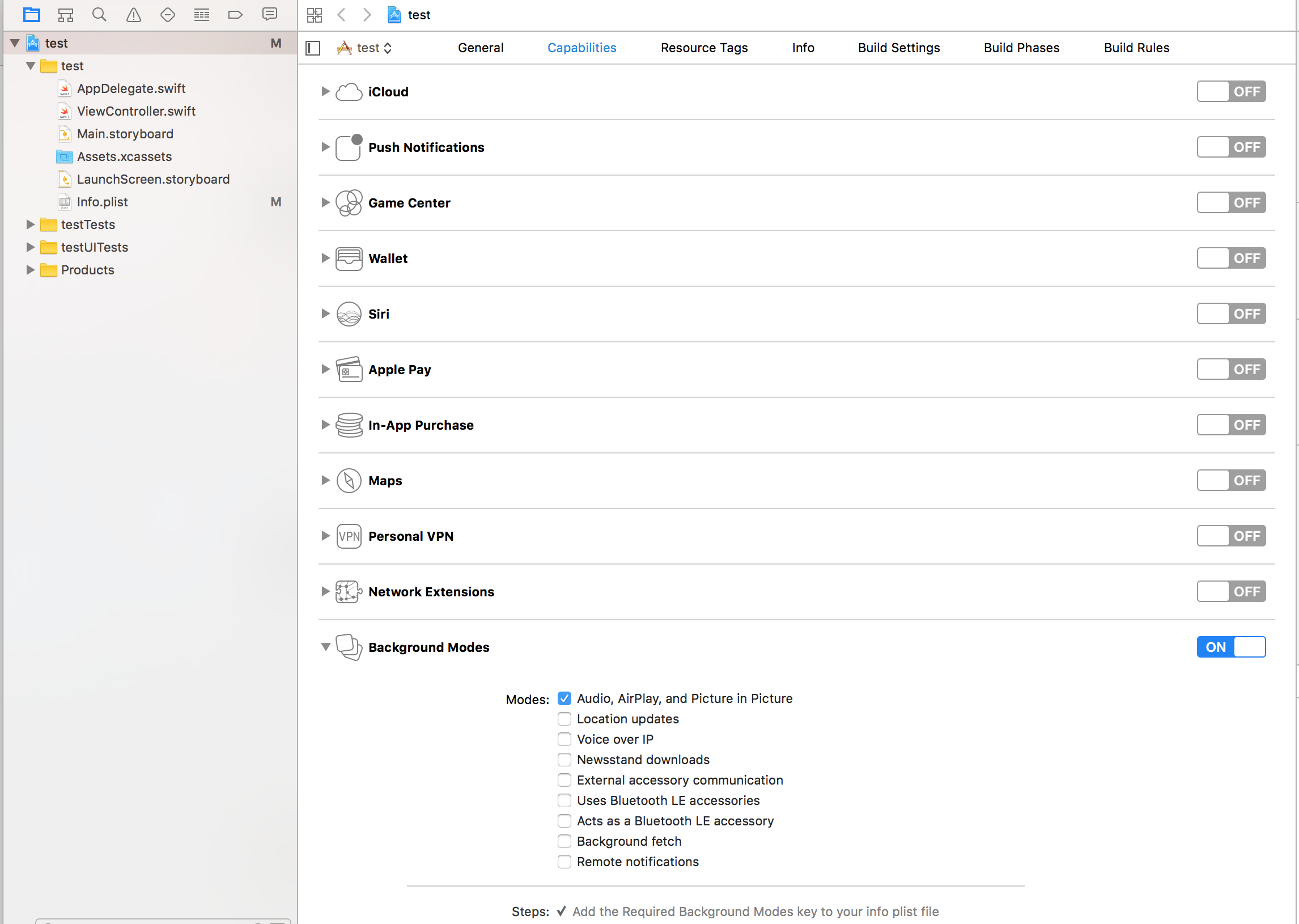
The library sets
AVAudioSessionto the playback category itself. Without this key the now playing entry still appears, but playback stops when the app backgrounds. -
Android: the library starts a foreground media playback service and publishes a media notification automatically. On Android 13+ ask the user for
POST_NOTIFICATIONSso the controls are visible (the service and audio keep running even if the permission is denied). The entry point uses the app launcher icon, override it by tapping the notification target if you want a custom landing screen.
VLCPlayerModule.supportsHardwareCodecs() reports whether the device can
hardware-decode typical profiles (VideoToolbox on iOS, always true on
Android). Import it when you need direct-play advertising.
The player renders and controls identically on Android TV and Apple TV. No extra props are needed. Only the host app has to be configured for TV.
The Android code path (TextureView vout, media session/notification, audio
focus) already works on Android TV, and libvlc-all is a TV-compatible ABI
library. To make your app appear on Google Play for Android TV you must:
-
Make the launcher activity TV-ready in
AndroidManifest.xml:<uses-feature android:name="android.software.leanback" android:required="false" /> <uses-feature android:name="android.hardware.touchscreen" android:required="false" /> <application ... android:banner="@drawable/banner"> <activity android:name=".MainActivity" ...> <intent-filter> <action android:name="android.intent.action.MAIN" /> <category android:name="android.intent.category.LAUNCHER" /> <!-- Android TV apps must declare this to appear on the TV home screen --> <category android:name="android.intent.category.LEANBACK_LAUNCHER" /> </intent-filter> </activity> </application>
The library's own manifest already declares
leanbackandtouchscreenasrequired="false", so phone / tablet / TV installs are all unaffected. -
Provide a TV banner: a
drawable-xhdpiimage, 320 x 180 px, with the app title embedded, referenced viaandroid:banner. -
Emulator note: Android TV emulator images are
x86_64. The library'sbuild.gradleshipsarmeabi-v7a,arm64-v8a, andx86_64so TV emulators work. Real Android TV hardware is arm64. If you overrideabiFiltersin the host app, includearm64-v8a(andx86_64for the emulator).
Use the react-native-tvos fork for focus-based D-pad navigation and remote input. Plain
react-nativeapps still render but provide no D-pad focus handling. If you adopt the fork for Apple TV, you get Android TV navigation support in the same build.
-
React Native core does not target tvOS, so alias
react-nativeto the TV-maintained fork, matching your RN version:{ "dependencies": { "react-native": "npm:react-native-tvos@0.86.2-0" } } -
Run
pod installinios/. The single podspec auto-detects the target platform: on tvOS targets it depends on TVVLCKit, on iOS targets on MobileVLCKit (both 3.7.3).For Expo projects, add the
@react-native-tvos/config-tvconfig plugin (it wires up the tvOS Podfile, Xcode target and TV intent). Build for TV withEXPO_TV=1, build for phone withEXPO_TVunset:EXPO_TV=1 npx expo prebuild --platform ios --clean EXPO_TV=1 npx expo run:ios --device "Apple TV 4K" -
Background audio / now playing: tvOS has no iOS lock screen, but the same
MPNowPlayingInfoCenter+MPRemoteCommandCentercode drives Apple TV's Control Center. Declare theaudiobackground mode in your tvOSInfo.plistUIBackgroundModesas on iOS. -
The build steps, iOS vs tvOS deployment targets and simulator slices are otherwise identical (see Installation).
- Android (Kotlin):
com.lunarr.vlcplayer, a codegen-awareSimpleViewManagerimplementingVLCPlayerManagerInterface, aTextureView-backedVLCPlayerViewhosting libvlc, and aVLCPlayerModuleTurboModule. Events are dispatched via Fabric'sEventDispatcher. - iOS (Swift core + thin Objective-C++ Fabric wrapper): all video logic
lives in
VLCPlayerView.swift(MobileVLCKit). Because React Native requires Fabric components to be Objective-C++, a minimalVLCPlayerComponentView.{h,mm}bridges props/commands/events to the Swift view and the codegen-generatedRCTVLCPlayerEventEmitter. TheVLCPlayerModuleTurboModule is Objective-C++ (Swift TurboModules are not supported directly).
MIT