
A terminal viewer for JSON Lines (JSONL/NDJSON) files. Browse records, search nested JSON, and inspect long strings as readable, word-wrapped text—useful for logs, datasets, and LLM agent traces.
jlv-demo.mp4
Install the jsonl-viewer package with uv
or pipx; both manage an isolated environment for the tool.
The command is still jlv:
uv tool install jsonl-viewer
jlv your-file.jsonl
Alternatively, with pipx:
pipx install jsonl-viewer
jlv your-file.jsonl
On Debian/Ubuntu, you can install pipx with sudo apt install pipx, then run
pipx ensurepath and open a new terminal.
If you already have a virtual environment activated, you can use
python -m pip install jsonl-viewer. For a system-managed Python installation,
use uv or pipx to avoid the externally-managed-environment error.
From a source checkout:
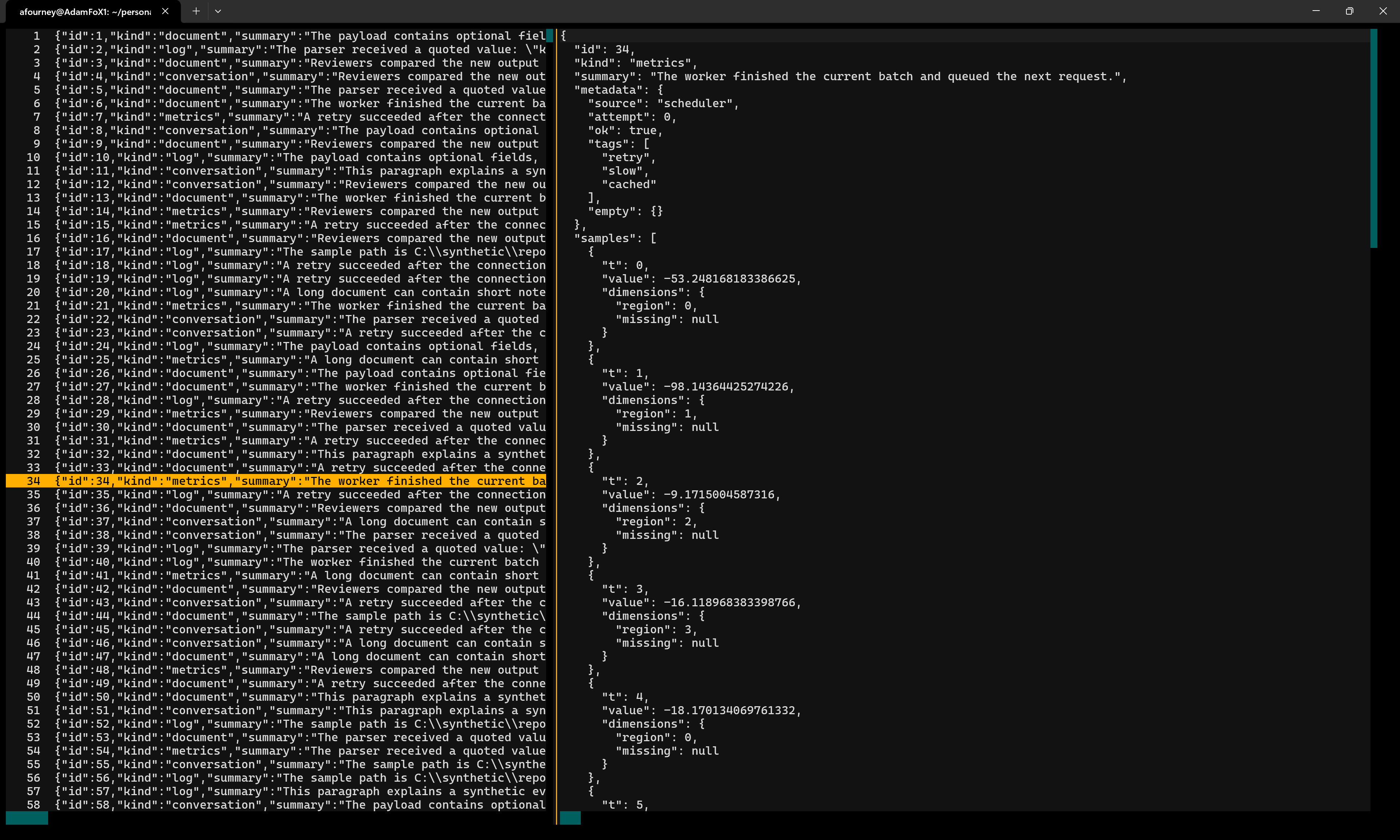
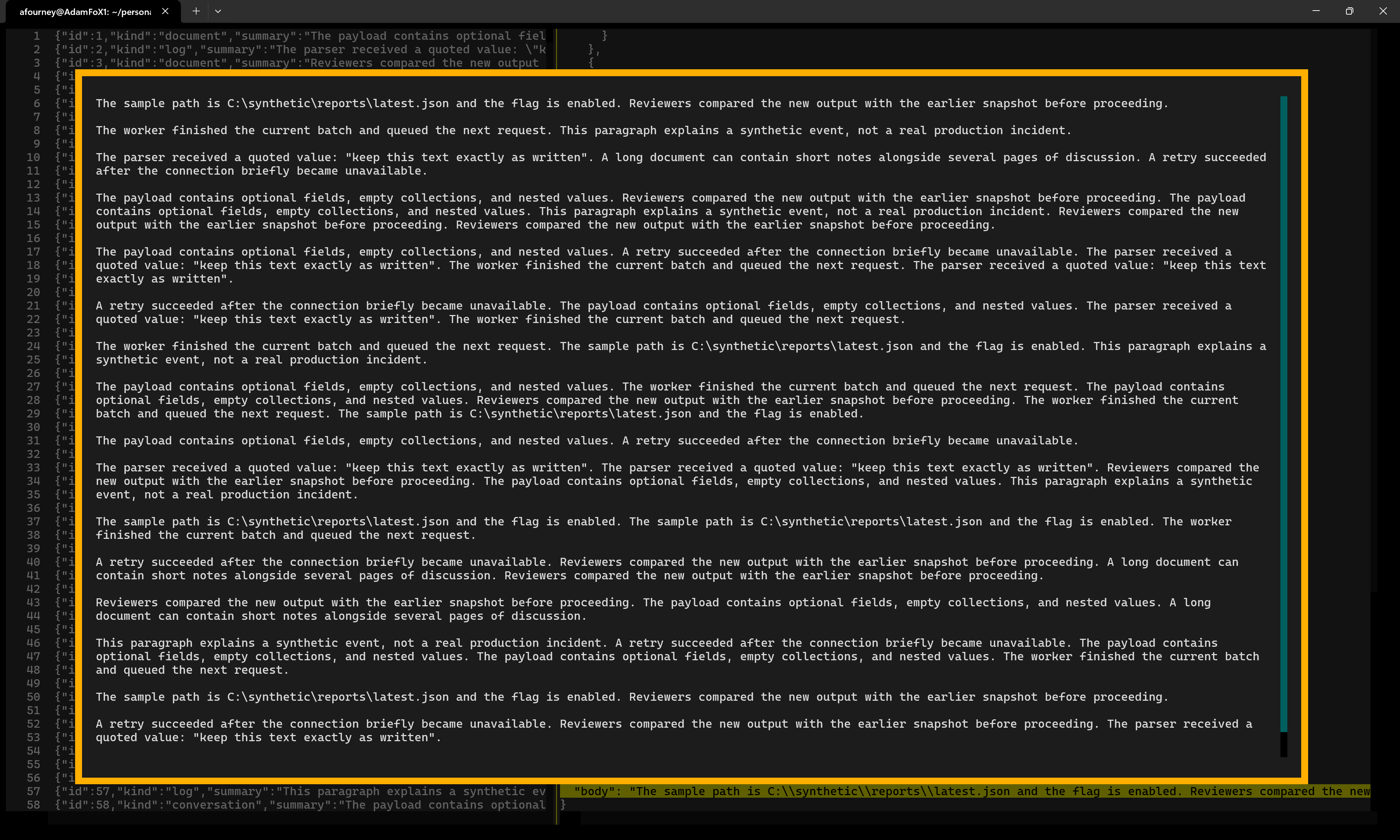
uv run jlv your-file.jsonlRequires Python 3.12+ and Textual 8+. The left panel lists numbered records; the right panel shows the selected record as indented JSON. The focused panel shows a bright row highlight; the record list keeps a dimmed highlight on the selected record while the JSON preview has focus. Select a string to read its decoded contents in a scrollable, word-wrapped inspector.
Browse records alongside their formatted JSON:
Open a string to read its decoded, word-wrapped contents:
| Key / action | Effect |
|---|---|
| Up / Down, k / j | Select the previous / next record or line |
| Page Up / Page Down | Move by a page |
| Home / End, gg / G | Move to the first / last row |
| Tab / Shift+Tab | Switch panels |
| Left / Right, h / l | Scroll horizontally where available |
| 0 / $ | Reveal the start / end of the current line |
| [ / ] | Navigate object/array block starts in the JSON preview |
| % | Jump between matching object/array delimiters in the JSON preview |
| Enter | Drill down: from the record list into the JSON preview, then into a selected string |
| Click | Select a record, or inspect a string in the JSON preview |
| > / < | Decode a JSON-encoded string or open encoded data natively / undo the last JSON decode |
| | | Run a custom script on the selected value or record |
| Mouse wheel / scrollbars | Scroll the panel under the pointer |
| Ctrl+F, /, ? | Open search (both / and ? search forward) |
| Enter in search | Find next match and return focus to the panel |
| Enter in a main panel while search is open | Close search, focus the JSON preview, and inspect its current line if it is a string |
| F3, n | Find next match |
| Shift+F3, N | Find previous match |
| :number then Enter | Jump to a 1-based line in the originating panel |
| :q then Enter | Close the string inspector, or quit from a main panel |
| Alt+R / Alt+C | Toggle Regex / Match case while search is open |
| Escape | Back out one level: close search, then the string inspector, then move from the JSON preview to the record list |
The inspector is read-only and supports text selection and Ctrl+C to copy. The main panels also support text selection. The left-hand preview is capped at 1,000 characters, but the right-hand document and decoded strings are not truncated.
The main panels share one search across the full formatted JSON, including text
beyond the left panel's truncated previews. A result selects its record on the
left and highlights the matching text on the right, scrolling it into view.
F3 and Shift+F3 (or n and N with a panel focused) move between individual
matches, including matches in the same record, and wrap at either end of the
file. Escape closes the search bar.
Inside the string inspector, search is independent and limited to that decoded string.
Search defaults to literal, case-insensitive matching. Use Alt+R for regular expressions and Alt+C for case-sensitive matching; the search bar displays both settings. Press Enter to search after editing the query or changing an option.
Some JSONL files store JSON inside string values, sometimes encoded more than
once. When the selected string in the JSON preview holds encoded JSON, a hint in
the bottom-right corner says so. Press > to show its decoded value in place,
and > again to decode another layer; press < to undo one decode. Only strings
that decode to an object, array, or another string are expanded; anything else
rings the bell. Decoding is view-only: changing records or jumping to a search
result restores the original record, and search always runs against the
original text.
The string inspector supports the same keys, and its bottom border shows which
apply. > replaces the string with its decoded text, or with pretty-printed JSON
once it decodes to an object or array, and < undoes it. Once it shows JSON,
each further > decodes every string at any depth that holds encoded JSON, by
one layer, ringing the bell only when none do. The inspector's search covers
whatever it currently shows.
When the selected string is a likely data: URI or plain base64, the same hint says
“Press > to open natively”. This works in the JSON preview and string inspector,
and is offered only when xdg-open is on PATH on Linux, open is available on
macOS, or os.startfile is available on Windows. Nothing opens until you press
>. JSON string decoding and < undo continue to work as before.
Plain base64 uses the standard alphabet (A–Z, a–z, 0–9, +, /), with
optional = padding and space/tab/newline wrapping. Its file type is inferred
from decoded contents, and the same allowlist and Allow/Cancel warning apply.
For example, a base64 PNG opens as .png, while a base64 executable requires
consent. JSON-quoted strings first decode as JSON; pressing > again can then
open the resulting base64 string. Native opening does not change the displayed
string or add an undo step.
Detection is deliberately conservative: it requires at least 8 encoded
characters, or 16 without padding, and mixed case or a +, /, or = signal.
Pure hexadecimal strings and ambiguous short or single-case words receive no
native-opening hint. The hint checks only the first 4 KiB and last 128 source
characters, without decoding. Full base64 validation happens in the background
when opening; malformed contents ring the bell and never launch a handler.
Opening first inspects at most 8 KiB of decoded header data in a background thread. The formats below open without an additional warning when the detected contents agree with the declared MIME type. MIME aliases use the fixed extension shown here, rather than a locally configured MIME-to-extension mapping. When MIME is omitted, recognizable media or readable UTF-8 text can open directly.
| Format | Extension | Accepted MIME types |
|---|---|---|
| JPEG | .jpg |
image/jpeg, image/pjpeg |
| PNG / APNG | .png |
image/png, image/apng, image/vnd.mozilla.apng |
| GIF | .gif |
image/gif |
| WebP | .webp |
image/webp |
| BMP | .bmp |
image/bmp, image/x-ms-bmp |
| TIFF | .tif |
image/tiff |
| Icon | .ico |
image/x-icon, image/vnd.microsoft.icon |
| AVIF | .avif |
image/avif |
| HEIC / HEIF | .heic |
image/heic, image/heif |
| JPEG 2000 | .jpx |
image/jpx, image/jp2 |
| JPEG XR | .jxr |
image/vnd.ms-photo |
| MP3 | .mp3 |
audio/mpeg, audio/mp3 |
| WAV | .wav |
audio/wav, audio/wave, audio/x-wav, audio/vnd.wave |
| FLAC | .flac |
audio/flac, audio/x-flac |
| Ogg / Opus | .ogg |
audio/ogg, video/ogg, application/ogg, audio/opus |
| AAC | .aac |
audio/aac, audio/x-aac |
| M4A | .m4a |
audio/mp4, audio/x-m4a |
| AIFF | .aiff |
audio/aiff, audio/x-aiff |
| AMR | .amr |
audio/amr |
| MIDI | .mid |
audio/midi, audio/x-midi |
| MP4 | .mp4 |
video/mp4 |
| M4V | .m4v |
video/x-m4v |
| QuickTime | .mov |
video/quicktime |
| AVI | .avi |
video/x-msvideo, video/avi |
| Matroska | .mkv |
video/x-matroska |
| MPEG video | .mpeg |
video/mpeg |
| WebM | .webm |
video/webm |
| WMV | .wmv |
video/x-ms-wmv |
| FLV | .flv |
video/x-flv |
| 3GPP | .3gp |
video/3gpp |
| Plain text | .txt |
text/plain |
All other types—including SVG, HTML, PDF, Office documents, archives, scripts, and executables—show an Allow / Cancel warning. Unknown binary contents, unverified media, MIME/signature mismatches, and text prefixes containing markup, shebangs, desktop-entry headers, or batch-script markers also require consent. The warning shows the declared type, detected type, and extension, and explains that opening may execute code or invoke an unexpected application. Cancel has initial focus, so Enter cancels by default; Escape always cancels. Allow applies to this opening only. Canceling creates no file and never launches a handler.
This is an explicit policy for common passive formats, not a guarantee that a file or its default handler is safe. The content check is bounded and does not sandbox the native application.
After any required consent, full decoding runs in a background thread into a
unique file in a per-session temporary directory. Non-allowlisted explicit MIME
types retain their usual extension; unknown types fall back to .txt but still
require a warning unless recognized as plain text. Data URI hints inspect only
the URI header, without decoding large payloads. Both base64 and percent-encoded
data URI payloads work.
Malformed payloads, launch errors, and nonzero launcher exits within roughly
500 ms ring the bell. Longer-running launchers are reaped in the background;
JLV does not wait for or close the viewer.
Temporary files are removed on normal JLV exit, with best-effort cleanup of locked files on Windows. A viewer may lose access to its file after JLV closes; a crash may leave temporary files behind.
Press | in the JSON preview to run a script on the selected value, in the
record list to run it on the whole record, or in the string inspector to run it
on the string being shown. Any row can be selected: strings, numbers, booleans,
null, and objects or arrays (from either of their delimiter rows). A picker lists
the scripts that apply; type to filter, then press Enter.
Scripts are declared in scripts.toml in JLV's user configuration directory:
~/.config/jlv/ on Linux, ~/Library/Application Support/jlv/ on macOS, and
%LOCALAPPDATA%\jlv\ on Windows. JLV rereads the file each time the picker
opens. For example, to convert HTML fields to Markdown with
markitdown:
[[script]]
name = "HTML → Markdown"
command = ["markitdown", "-x", "html"]
output = "text/markdown"
applies_to = "string"
match = '^\s*<'

[[script]]
name = "Validate record"
command = ["python", "./validate.py"]
input = "envelope"
applies_to = "record"| Field | Meaning |
|---|---|
name |
Shown in the picker. Required. |
command |
Program and arguments, run directly without a shell. Required. |
input |
What is written to stdin: value (default) or envelope. |
output |
MIME type of stdout: text/plain (default), text/markdown, or application/json. |
applies_to |
string, container, record, or any (default), or a list of these. |
match |
Optional regular expression; the script is offered only when it matches the value. |
timeout |
Seconds before the script is stopped. Defaults to 30. |
Because no shell is involved, JLV expands only a leading ~ in each command
element, and resolves elements starting with ./ or ../ against the folder
containing scripts.toml. Scripts run in the directory JLV was started from,
with JLV_FILE and JLV_LINE set to the input file and 1-based line number.
In value mode, a selected string is sent raw as UTF-8, without JSON quotes or
escapes, so tools like markitdown, pandoc, or xmllint work unchanged. Other
values are sent as JSON text. In envelope mode, stdin is a JSON object:
{"record": {"id": 7, "body": "<p>Hi</p>"}, "value": "<p>Hi</p>", "path": "/body",
 "source": {"file": "/data/log.jsonl", "line": 42}}
record is the record as currently displayed, including any > decoding or an
earlier script's JSON result. path is a JSON Pointer into it that resolves to
value; the whole record has the path "". source records where the record
came from. In the string inspector, an unchanged string keeps its record and
path. Once the inspector shows decoded text or a script's result, that content
stands alone: it is sent as both record and value, with the path "", and
applies_to = "record" matches it alongside its own type.
Text and Markdown output opens in a new string inspector, where search and copy
work as usual and | runs another script on the result; Markdown is shown as
text. Escape returns to where the script was run. JSON output must be exactly
one JSON value (wrap multiple values in an array, for example with jq -s). Run
from a main panel, it replaces the displayed record, so you can browse, decode,
search within, or run another script on it; < returns to the previous view,
and changing records restores the original. Run from the string inspector, it
opens as formatted JSON in a new inspector.
A script can also choose its own title and type by printing a result envelope.
Only an object with "$jlv": "result" and content is treated this way; any
other JSON is ordinary output:
{"$jlv": "result", "title": "Schema validation", "mime": "text/markdown", "content": "Valid."}With "mime": "application/json", content is the result value itself, and is
not parsed again: "content": "42" is the string "42", not a number.
While a script runs, Escape stops it. Escape and timeouts stop the script along with any processes it started. A nonzero exit, timeout, or invalid JSON output opens the inspector with the exit status and whatever the script wrote to stderr and stdout. Stderr from a successful run appears as a notification. Scripts never change the file.
Scripts are trusted local programs that run with your permissions and network access. JLV runs only scripts listed in your own configuration, never anything found in the files you open.
Both main panels render only visible rows, rather than creating a widget for every record or JSON field. The viewer opens after reading a small initial batch, then validates and indexes the remaining records in a background thread. A status line shows progress, and newly indexed records become available without resetting your selection or scroll position. You can navigate and inspect strings while indexing continues. Full-file search, End/G in the record panel, and jumps beyond the indexed records report that indexing must finish first; string-inspector search and navigation within the current record remain available.
The loader uses native byte-oriented JSON validation and a compact byte-offset index. It decodes only short prefixes for preview measurements, preserving Python's JSON compatibility and diagnostics for exceptional records. Records are read and parsed on demand; small bounded caches retain recent previews and formatted documents. The string inspector also renders a viewport, and defers wrapping until its actual display width is known.
Malformed JSON, invalid UTF-8, and interior blank lines are reported with a line number when encountered. An error in the initial batch prevents opening; a later error stops indexing and remains visible in the status line while previously validated records remain browsable. Exiting after such an error returns a nonzero status. Trailing blank lines are permitted. Quitting cancels background work. Indexes and previews stay in memory; the viewer does not write sidecar files or disk caches. Non-seekable inputs are still spooled to a temporary file before opening. This is a read-only viewer, not a live file follower; do not edit the input file while viewing it.
The terminal probe measures CLI invocation to the first interactive frame, navigation latency, and optionally completion of background indexing:
uv run python tools/terminal_startup.py stress-test.jsonl \
  --navigation-samples 20 --wait-for-index --output /tmp/jlv-startup.json
The probe reads its input in place and discards terminal output. Its JSON report contains timings, memory usage, and file metadata, never record contents. It requires at least one more record than the requested navigation samples.
The repository includes stress-test.jsonl.gz, a compressed synthetic dataset
with 30,000 records. Extract it before opening it:
gzip -dk stress-test.jsonl.gz
uv run jlv stress-test.jsonl
The extracted file is 300 MB and is Git-ignored. Records range from approximately 1-100 KB and contain nested structures and strings of varying lengths. Some strings intentionally end mid-sentence to fit the generated record sizes.